Add a task (and type its date, time and priority as you go)
You can add a task from anywhere in PV0T, and set its day, time, length, priority and category just by typing.
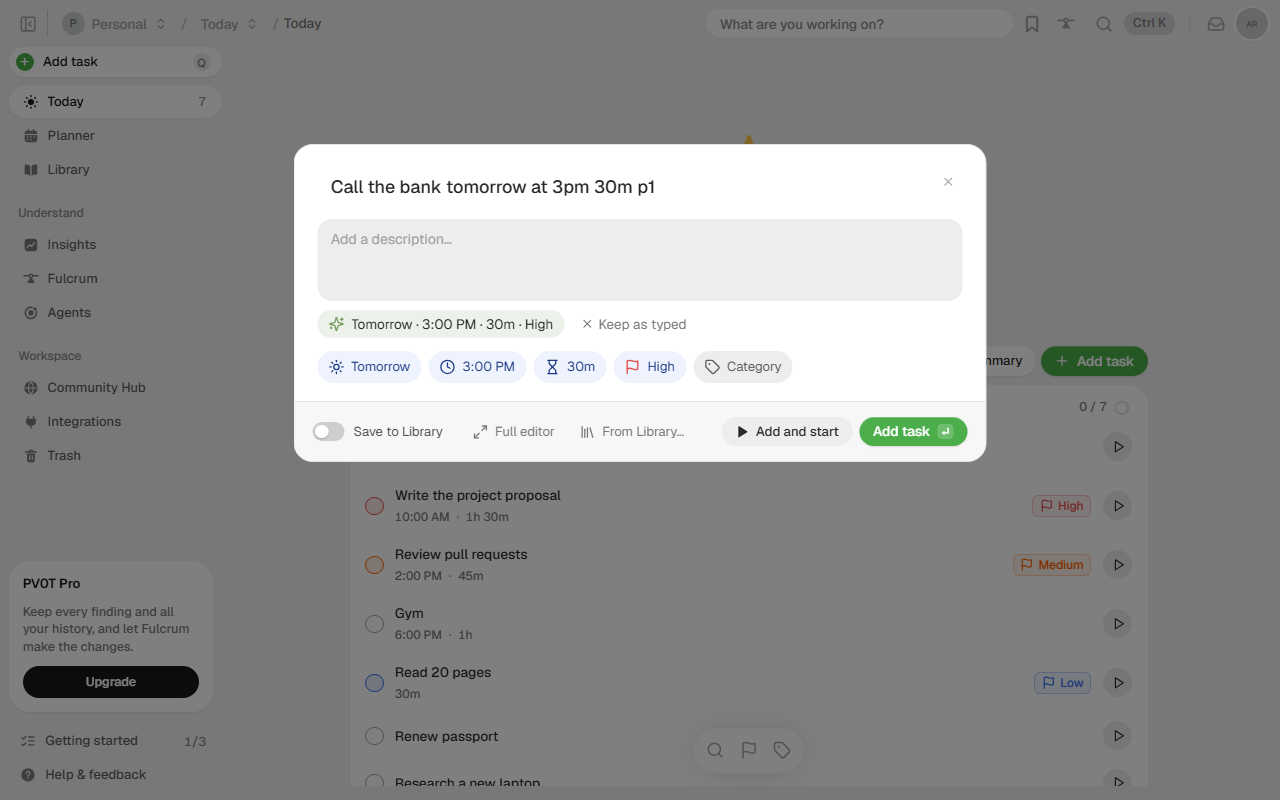
Add a task
- Click Add task at the top of the sidebar, or press Q.
- Type what you need to do.
- Press Enter to add it. Press Shift+Enter to add it and start another one straight away.
Type the details into the name
PV0T recognizes these while you type and shows what it picked up:
- A day: "today", "tomorrow", "friday", "next week", "in 3 days" or a date.
- A time: "at 3pm", "at 15:00".
- A length: "30m", "1h". This is how long you plan to spend on it.
- A priority: "p1" (high), "p2" (medium), "p3" (low), or "!high", "!medium", "!low".
- A category: "#" followed by the name of a category you already have, like "#health".
For example, "Call the bank tomorrow at 3pm 30m p1" adds "Call the bank" for tomorrow at 15:00, planned for 30 minutes, with high priority.
If PV0T picks up something you meant literally, click Keep as typed.
Or use the buttons
Under the name you can also pick the day (Today, Tomorrow, Next week, No date or a date on the calendar), Add time, Add length, the priority and the category.
Good to know
- Dates and times are understood in English and Spanish, plus the language PV0T is set to.
- A task without a day goes to To plan in the Planner.
- A task with a length counts down as a timer when you start it. Without one, it counts up as a stopwatch.
Related
Did this answer your question?