Change the theme and appearance
Make PV0T look and feel the way you like.
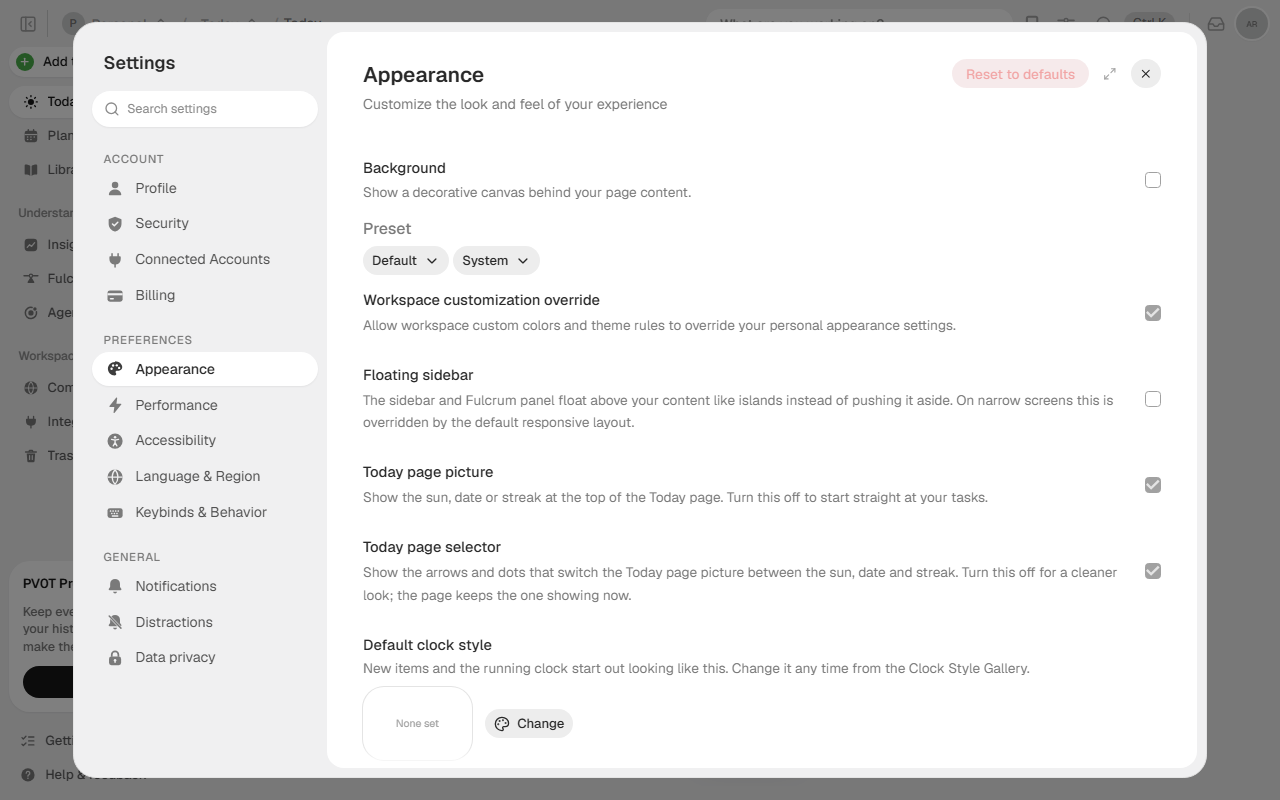
Open the settings
Click your profile picture in the top bar, choose Settings, then Appearance.
Theme
Choose Light, Dark or System (follow your device). Pick a preset, or use Single-theme to keep one look everywhere.
Background
Show a decorative background behind your pages, and set its Background blur. A low blur can make things harder to read on a busy background.
Layout
- Floating sidebar: the sidebar and the Fulcrum panel float above your content instead of pushing it aside.
- Full sidebar collapse: hide the sidebar completely when collapsed, instead of leaving a strip of icons.
- Top bar behavior: Static, or On hover to hide the top bar until your mouse nears the top of the screen, with an Auto-hide delay.
Clock and workspaces
- Default clock style: how timers look. See Change the clock style.
- Workspace customization override: let a workspace's own colours and theme take over from your personal settings while you're in it.
Motion
In Settings → Performance, turn Smooth Transitions off for instant changes without animations. Smooth scrolling is in Keybinds & Behavior.
Reset to defaults puts everything back.
Simplify the Today page
The picture at the top of Today has two settings in Settings → Appearance:
- Today page picture: turn it off to start straight at your tasks. The running clock still appears there while a timer runs.
- Today page selector: turn it off to hide the arrows and dots. The page keeps the picture showing now.
Related
Did this answer your question?