Read your Insights
Insights compares what you planned with what actually happened, using your own timers, plans and distractions. Open Insights in the sidebar. Overview is the first of its three tabs, next to Activity and Reports.
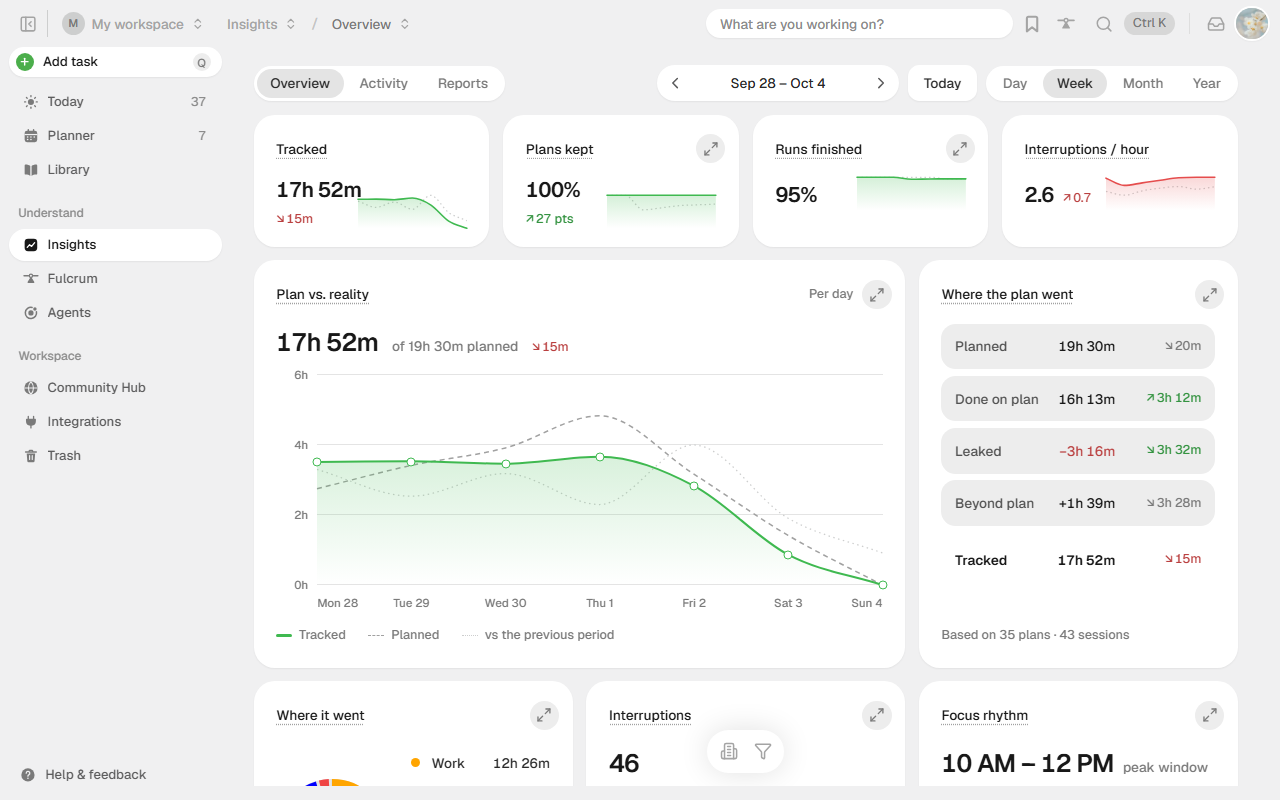
Choose the period
At the top right of the page:
- Day, Week or Month picks the period. Year is part of Pro.
- The arrows move to the previous or next period, the date opens a calendar, and the calendar button brings you back to today.
In the bar at the bottom of the page, Filter narrows everything to one category or one item (Pro).
What's on the page
At the top, the period at a glance:
- Tracked time against your planned time, compared with the same part of the previous period. On Pro, click a category under it to focus the whole page on that category.
- The flow: your tracked time drawn block by block on a calendar, so you can see when you actually worked. Colour the blocks by category or by productivity.
- Sessions, Finished, Peak hour, Active days, Follow-through and Interruptions: the period in six numbers.
- Productivity: how much of your time was productive, distracting or paused. Categories shows where it went, and Recent sessions lists your latest timers.
Further down, from top to bottom:
- Where you fell short: the biggest gaps between your plan and your day, worst first, each with one thing to try. What's working lists what's going well.
- Productive vs. distracting time: productive time against time lost to distractions, per day.
- Daily tracked work and Time breakdown: your tracked time by day, and by category or item.
- When you work: your peak hours and busiest day.
- Consistency: your streaks and the last 12 months, one square per day. Greener means more time tracked; a ! marks a day you had plans and finished none of them.
- Priorities and distractions: how many plans you finished per priority, and what pulled you away.
- Estimates vs. reality: how long finished plans took compared with what you planned.
- Run outcomes: how your timed sessions ended (completed, ended early, cancelled or skipped), and how many of your plans you followed through on.
- Planning and interruptions: how close your estimates are, and how often you get interrupted per tracked hour.
- Why plans fell apart: the reasons you gave in your evening follow-ups.
- Run history: every timed session. Remove one you started by mistake, and it no longer counts anywhere in Insights.
On the Free plan
Free shows the last 4 weeks, the biggest finding in Where you fell short, and everything at the top of the page plus daily tracked work, the time breakdown, run outcomes and run history. Every other finding, What's working, When you work, Consistency, Priorities and distractions, Estimates vs. reality, filtering and older periods are part of Pro, and only appear once you're on it.
Good to know
- Insights fills in as you time your tasks. After about three days there's enough to show patterns.
- Hover over the ⓘ next to a section title for exactly how it's calculated.
Related
Did this answer your question?