How distraction tracking works
While a timer is running, PV0T notices when you're pulled away from your work, so you can see in Insights what interrupts you and how often.
Two ways a distraction is counted
- You log it yourself. Tap the phone button next to the timer (I got distracted) or press D: your phone buzzed, someone came over, you started daydreaming.
- You leave PV0T. If you switch to another tab, window or app for longer than a few seconds (5 seconds by default) while the timer runs, PV0T counts it as time away.
Time in apps and sites that Activity counts as focus work, like your code editor or design tool, never counts as a distraction. PV0T can only tell where you were with the desktop app or the browser extension. If you were away for half an hour coding and spent two minutes on YouTube, only those two minutes count.
When PV0T asks
By default PV0T doesn't interrupt you while you work. It notes the time away quietly and asks about it at your next break: once no timer has run for a little while. That way back-to-back and queued tasks aren't interrupted in between. For each time away, choose what pulled you away or I was working. Choose All were work to clear them all, or Later to keep them for the next break.
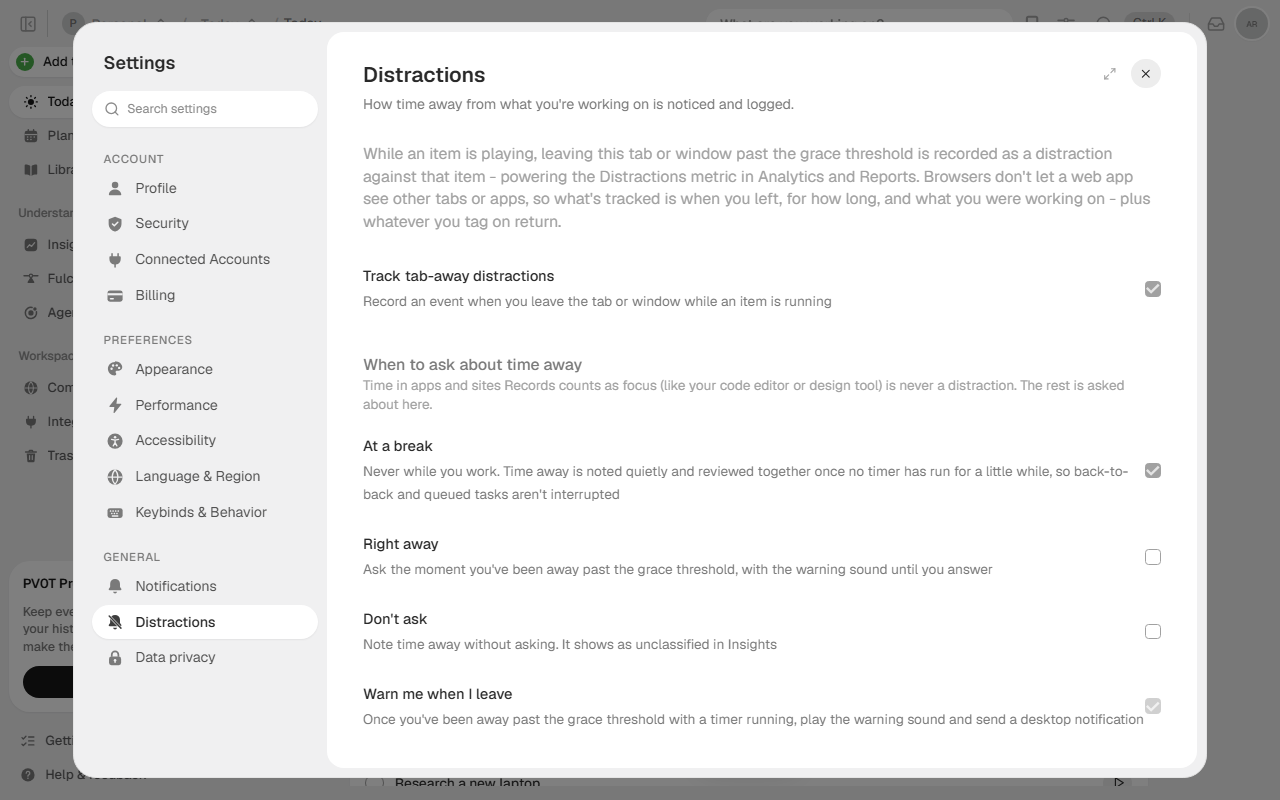
You can change this in Settings → Distractions → When to ask about time away:
- At a break (default): asked about together at your next break.
- Right away: asked the moment you've been away too long, with a warning sound until you answer.
- Don't ask: noted without asking. These show as unclassified in Insights.
What PV0T can and can't see
In a web browser, PV0T only knows that you left its tab, not where you went. The PV0T desktop app also sees which app or website was in front, so you can tell it which ones aren't distractions.
Change how it works
Open Settings → Distractions to:
- turn distraction tracking on or off,
- change how long you need to be away before it counts,
- choose when PV0T asks about time away,
- turn Warn me when I leave on or off (with Right away: a sound and a desktop notification once you've been away too long),
- see and remove the apps and sites you've marked as not distractions (with the desktop app).
Related
Did this answer your question?