Connect your Google Calendar
See your Google Calendar events in the Planner, next to everything you've planned in PV0T, so you plan around your real schedule.
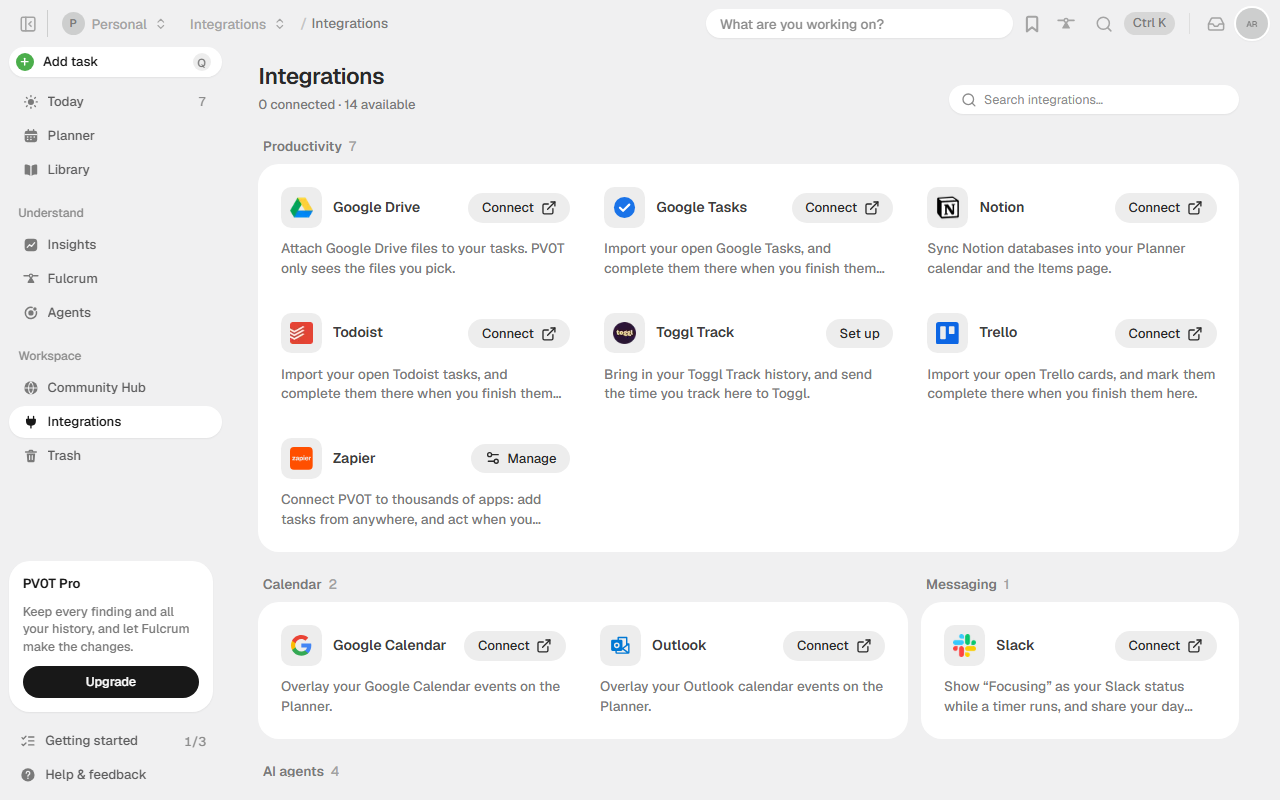
Connect it
- Open Integrations in the sidebar.
- Find Google Calendar and click Connect.
- Choose the workspace to connect it to.
- Sign in with Google and allow PV0T to see your calendar.
- In Choose calendars to sync, pick which of your calendars should show up, then save.
Your events now appear in the Planner.
Show, hide or add calendars
In the Planner, open the Calendars tab in the side panel:
- Show on calendar or Hide from calendar for each calendar.
- Choose calendars to change which calendars of an account are synced.
- Add more calendars to connect another Google account.
- Remove calendar to disconnect it.
Good to know
- Google Calendar is included in every plan, Free too.
- If Google stops accepting PV0T's access (for example after you changed your password), the calendar is marked as needing to be reconnected. Click Reconnect and sign in again.
- PV0T uses your Google data only to show and sync your calendar. See How PV0T uses Google data.
Related
Did this answer your question?